1. Text Contrast Requirements (Most Important)
Text is where contrast matters the most — and where most websites fail.
Normal Body Text
WCAG AA requires:
Minimum contrast: 4.5:1
Applies to:
Paragraph text
Navigation links
Labels
Form instructions
Footer text
This requirement exists because low-contrast text causes:
Eye strain
Poor readability on mobile
Serious issues for users with low vision
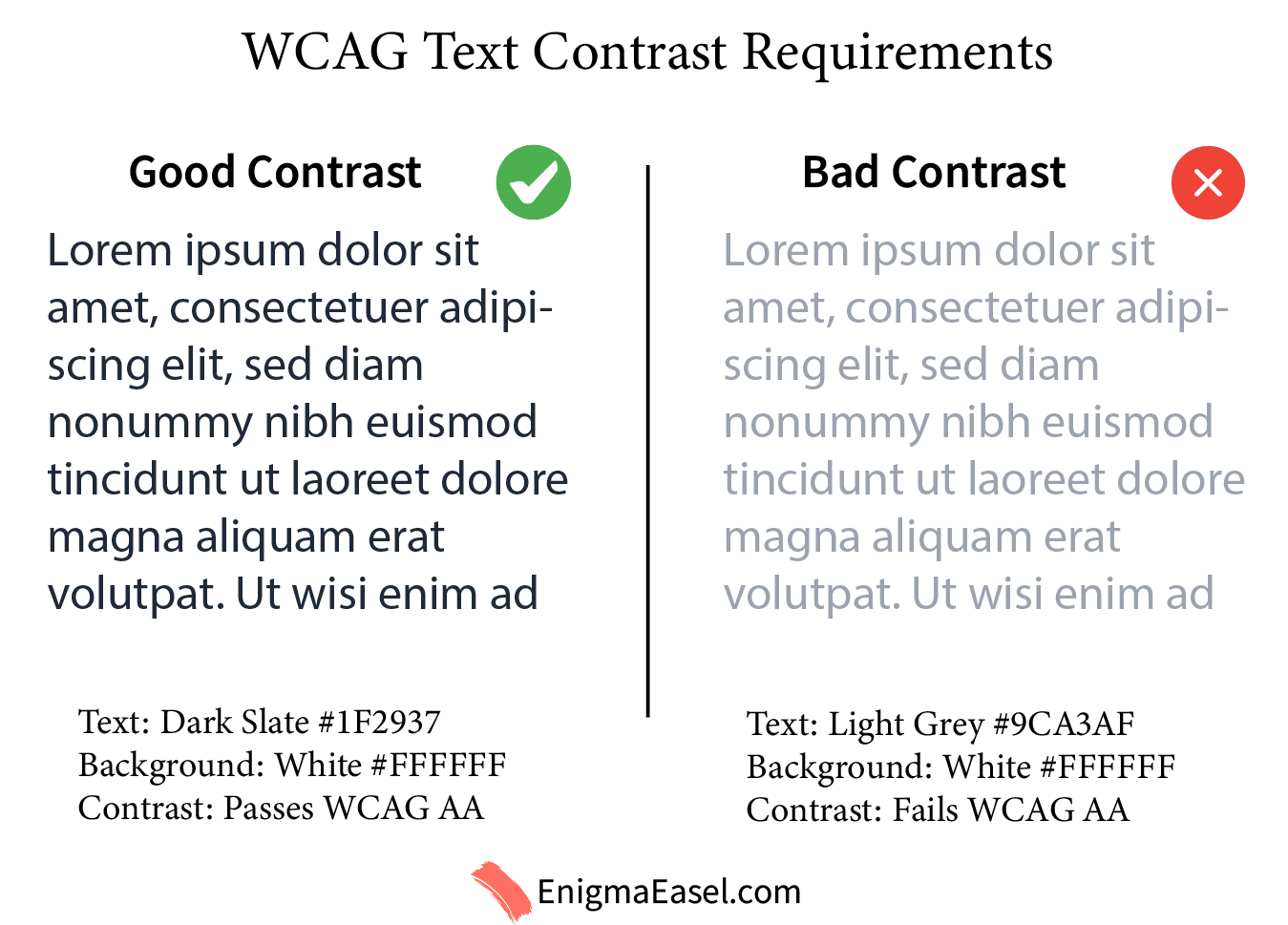
Example (Good Contrast):
Text: Dark Slate
#1F2937Background: White
#FFFFFFContrast: Passes WCAG AA
Example (Bad Contrast):
Text: Light Grey
#9CA3AFBackground: White
#FFFFFFContrast: Fails WCAG AA
Large Text (Headings)
Large text gets slightly relaxed rules.
WCAG AA requires:
Minimum contrast: 3:1
Applies to:
Headings
Large UI numbers
Bold text ≥ 18px (or 14px bold)
This allows designers to use softer colors for headlines while keeping body text strict.
Good heading example:
Heading: Indigo
#4338CABackground: White
#FFFFFF
2. Button and CTA Contrast Requirements
Buttons are interactive elements, not just decorative blocks.
Button Text vs Button Background
WCAG treats button labels as text, so:
Button text must meet 4.5:1 contrast against the button color
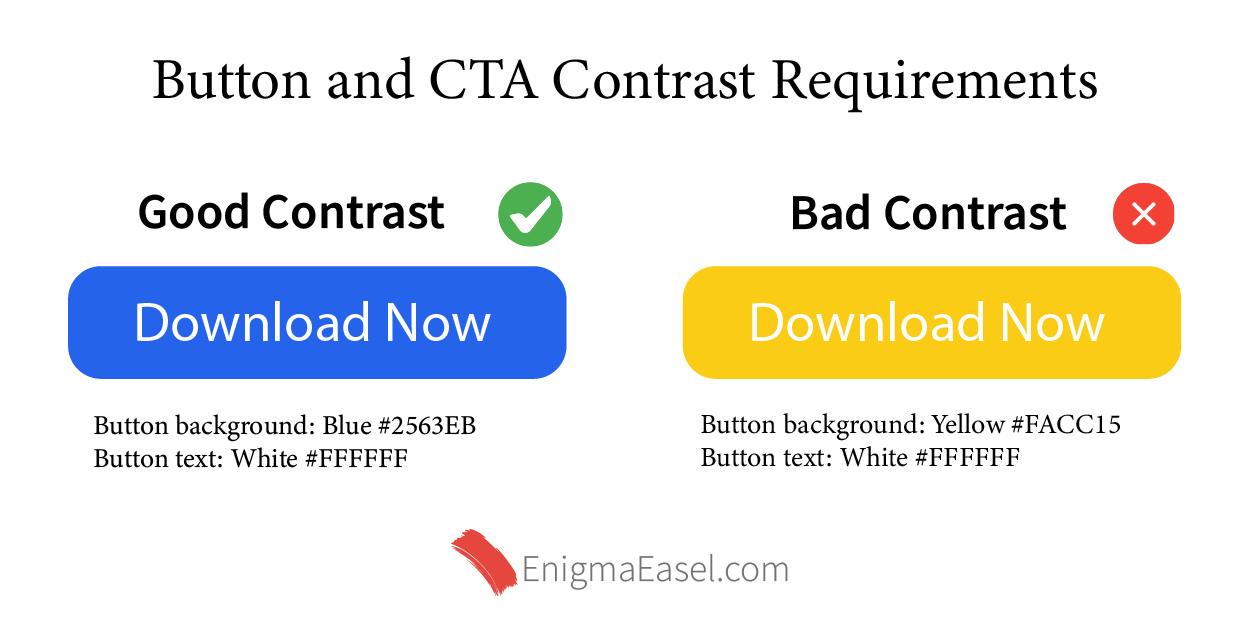
Good CTA example:
Button background: Blue
#2563EBButton text: White
#FFFFFF
Bad CTA example:
Button background: Yellow
#FACC15Button text: White
#FFFFFF(fails contrast)
(Color preview suggestion: Three CTA buttons — pass, borderline, fail)
Button vs Page Background
The button itself must also be visually distinguishable from its surroundings.
WCAG requires:
Minimum 3:1 contrast between the button and adjacent background
This ensures users can actually see the button.
Example:
Page background: Light Grey
#F3F4F6Button background: Blue
#2563EB→ clearly visible
3. Links Inside Text (Often Ignored)
Inline links deserve special attention.
WCAG requires one of the following:
Link text contrast of 4.5:1 against background
ORA visual indicator other than color (underline, border, icon)
This is why:
Blue links without underlines often fail accessibility
Color-blind users cannot rely on color alone
Accessible link example:
Text: Blue
#1D4ED8Underlined
On white background

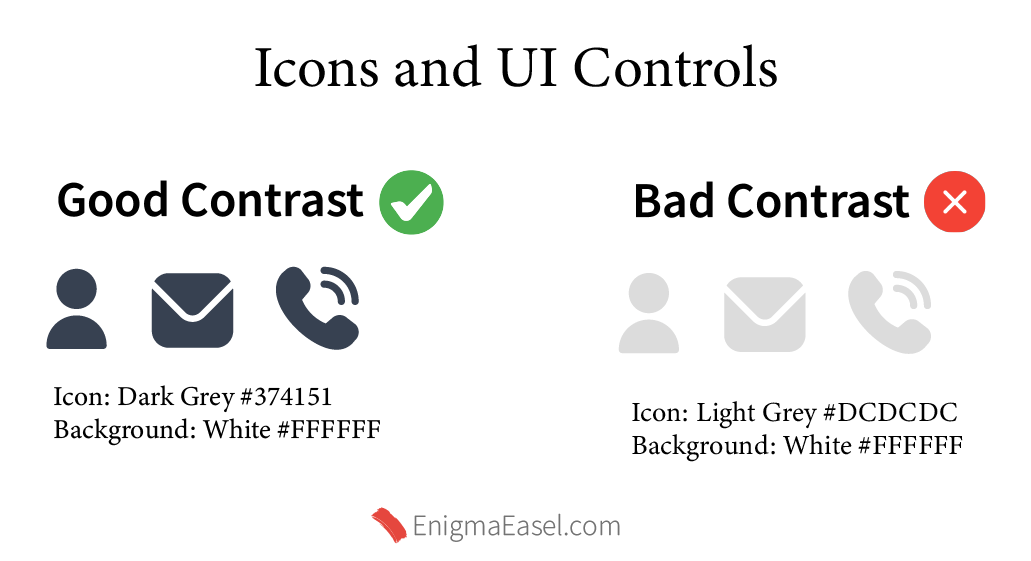
4. Icons and UI Controls
Icons are considered non-text UI elements.
WCAG AA requires:
Minimum contrast: 3:1 against background
This applies to:
Menu icons
Search icons
Close buttons
Form icons
Toggle indicators
Example:
Icon: Dark Grey
#374151Background: White
#FFFFFF
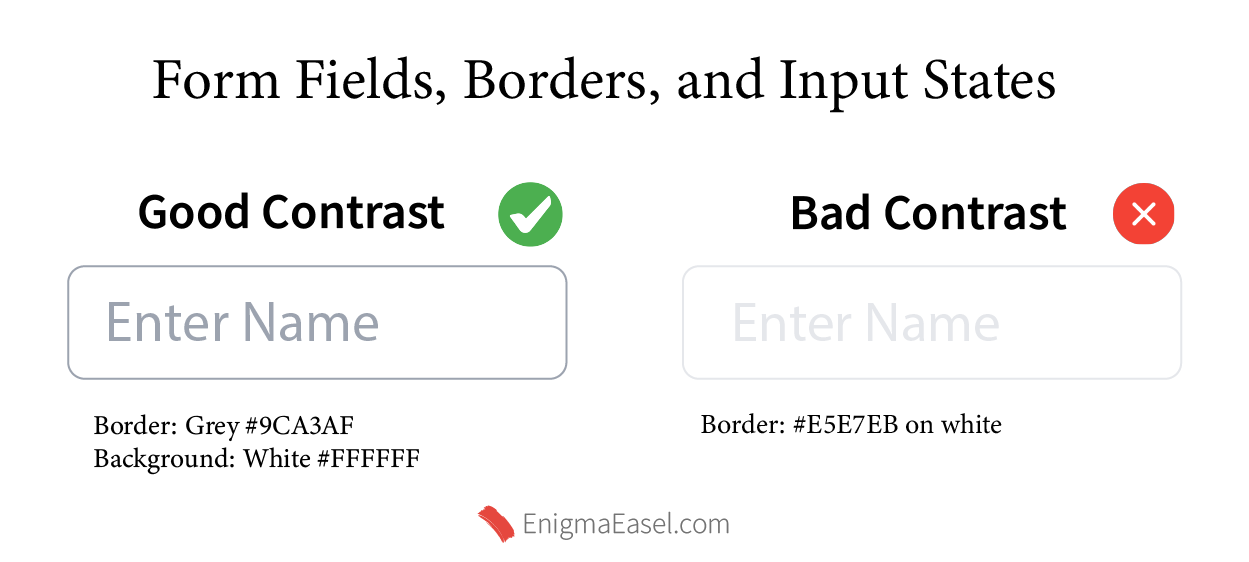
5. Form Fields, Borders, and Input States
This is where many modern UI designs break accessibility.
Input Borders
WCAG requires:
3:1 contrast for visible boundaries
If your input borders are too light, users may not see them at all.
Good input border:
Border: Grey
#9CA3AFBackground: White
#FFFFFF
Bad input border:
Border:
#E5E7EBon white
Focus States (Critical for Keyboard Users)
Focus outlines must:
Be clearly visible
Meet 3:1 contrast
Removing focus outlines without replacing them is a WCAG failure.
Good focus style:
Outline: Blue
#2563EBThickness: 2px+
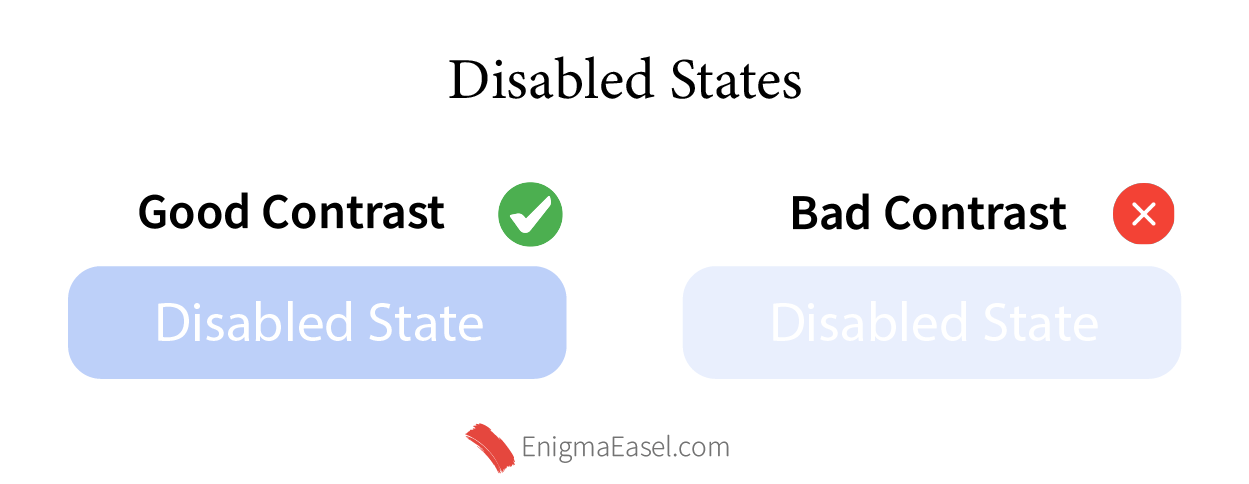
6. Disabled States (Special Case)
Disabled elements do not need to meet contrast requirements, but:
They must still be identifiable
They should not be confused with normal content
Best practice:
Lower opacity
Keep shape and context clear
Do not rely only on low contrast
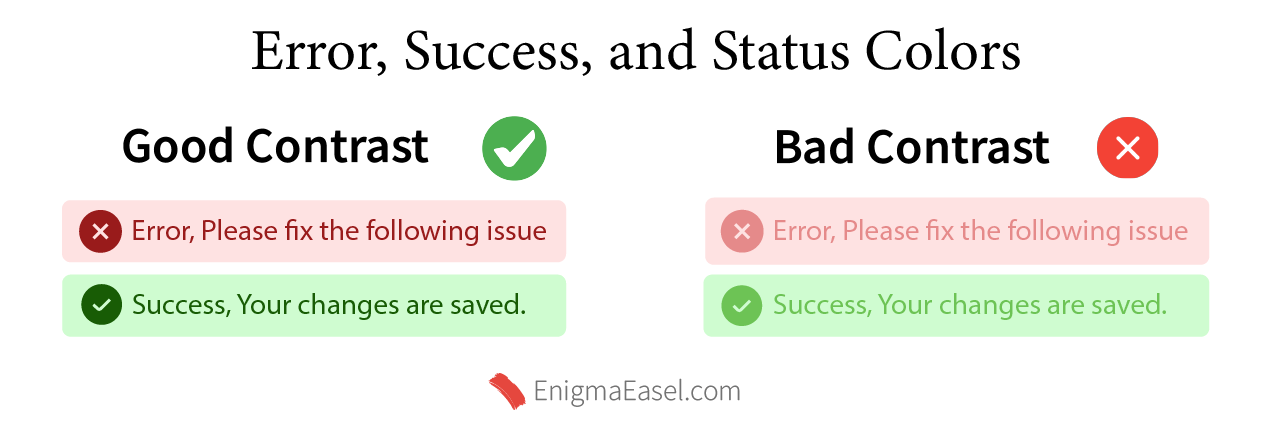
7. Error, Success, and Status Colors
WCAG does not allow color-only communication.
If you use:
Red for errors
Green for success
You must also include:
Icons
Text labels
ARIA alerts (where applicable)
Contrast requirements:
Text inside alerts → 4.5:1
Icons → 3:1
Good Accessible Error Example:
Background: Light Red
#FEE2E2Text: Dark Red
#991B1B
Bad Accessible Error Example:
Background: Light Red
#FEE2E2Text: Dark Red
#991B1B
Good Accessible Success Example:
Background: Light Red
#FEE2E2Text: Dark Red
#991B1B
Bad Accessible Success Example:
Background: Light Red
#FEE2E2Text: Dark Red
#991B1B